
A Twitch banner maker for PNGTubers should do more than place a random avatar over a purple background. The character, palette and visual energy should match the reactive PNG states viewers see on stream. FreePNGTuber can create that wide profile artwork after your four-state character is complete.
Open the Free PNGTuber Maker →
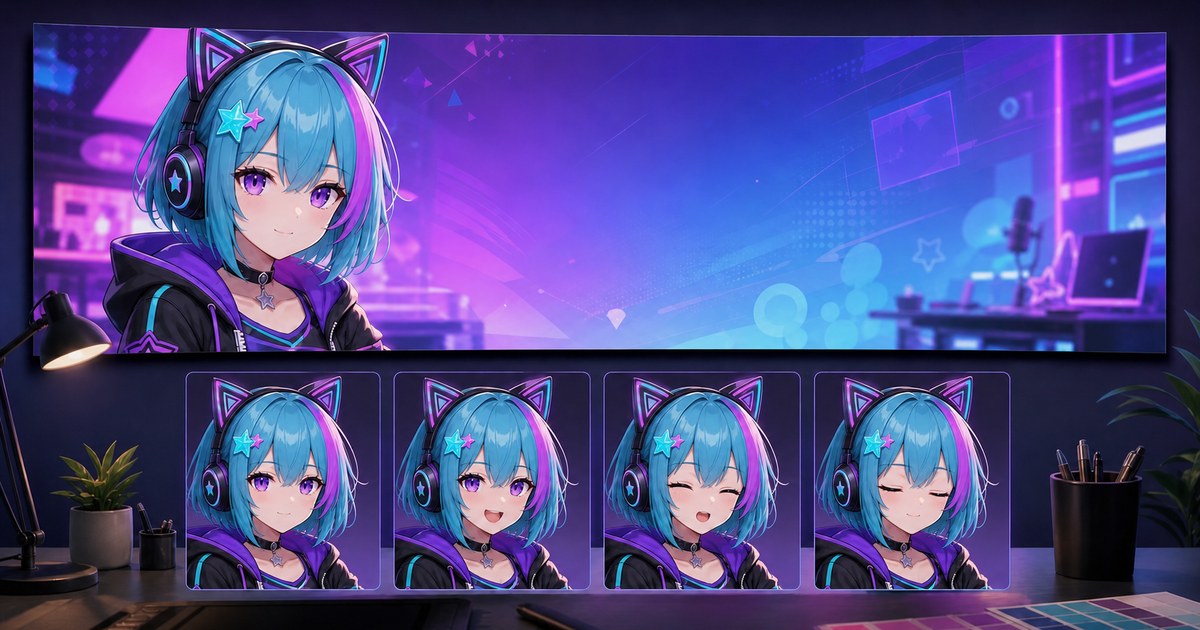
What the PNGTuber Twitch banner maker creates
The FreePNGTuber add-on creates a 1920×600 wide banner based on the completed character. The goal is visual continuity: the hair, outfit, accent colors and overall mood should feel connected to the four transparent states rather than like unrelated stock art.
- A wide composition designed around the generated character.
- A matching palette derived from the avatar.
- Room for the environment and decorative atmosphere.
- A downloadable banner file after the add-on job completes.
Because profile layouts can change and responsive interfaces may crop wide images differently, preview the finished file on the current Twitch channel page before treating the placement as final. Twitch maintains its own official channel page setup guidance.
How to create a matching Twitch banner
- Describe the character. Include the hairstyle, outfit, signature colors and one or two memorable motifs.
- Set the pose and emotion. Use the optional field for attitude and body language instead of overloading the identity prompt.
- Generate the four PNGTuber states. Review A Talking, B Quiet, C Blink + talk and D Blink.
- Check identity consistency. Do not continue if the hairstyle, accessories or outfit drift between states.
- Select Create Twitch banner. This appears only after a character job is complete.
- Download and preview the banner. Upload it to the channel, then inspect desktop and mobile presentation for cropping.
If this is your first avatar, start with what a PNGTuber is and how the four states work. For stronger facial states, use the PNGTuber poses and expression sheet guide.
Banner, overlay, background or offline screen?
These assets are often grouped together, but they solve different problems.
| Asset | Where it appears | Main purpose |
|---|---|---|
| Profile banner | Channel/profile presentation | Establish the creator identity before or outside a live session. |
| Stream overlay | Inside the live video composition | Frame gameplay, chat, alerts, webcam or avatar regions. |
| Stream background | Behind the avatar in an OBS scene | Create an environment when gameplay is not full-screen. |
| Offline screen | When the channel is not live, depending on platform configuration | Communicate that the stream is currently offline. |
The current FreePNGTuber action creates matching wide banner artwork. It is not a complete modular overlay pack and does not automatically position alerts, chat boxes or gameplay frames.
Design a banner that survives responsive cropping
A wide image may be presented inside different containers. The safest approach is compositional rather than relying on one permanent pixel-perfect crop:
- Keep the face and signature accessory away from the extreme left and right edges.
- Leave breathing room around the head instead of touching the top boundary.
- Use larger shapes and clear color blocks; tiny props disappear quickly.
- Avoid embedding critical text in generated artwork. Add exact typography later in a design tool if needed.
- Check contrast at a small preview size, not only on the 1920-pixel file.
A good banner can be asymmetric. Placing the PNGTuber on one side and preserving negative space on the other often reads better than centering every element. The important part is ensuring the focal character remains visible after the site applies its current crop.
Keep the banner consistent with the PNGTuber
Repeat two or three identity anchors
Choose stable traits such as cyan bobbed hair, a star hair clip and cat-ear headphones. Repeating every tiny detail can make the environment noisy; repeating nothing makes the banner feel generic.
Reuse the palette, not necessarily the pose
The banner character can use a calmer profile pose than the reactive talking state. Identity should remain locked while composition adapts to the panoramic canvas.
Match the channel mood
A cozy PNGTuber benefits from warm lamps, books, plants and soft depth. A cyber character can use geometric lighting and controlled neon accents. For more original directions, browse these 25 PNGTuber character prompt starters.
Common Twitch banner mistakes
- Starting with the banner before approving the character: identity errors then propagate into another asset.
- Treating the profile banner like an overlay: alert boxes and gameplay frames do not belong in the same asset.
- Placing the face at the edge: responsive cropping can remove the most important detail.
- Using tiny generated lettering: exact words are fragile in image generation and often unreadable at profile size.
- Ignoring the four source states: a beautiful banner is still weak if it resembles a different character.
- Skipping the live preview: the local file alone does not reveal how the current channel layout presents it.
From banner to live stream
The banner establishes the channel identity, but the reactive avatar still needs to enter the live scene. Import the completed .veadomini pack into Veadotube Mini, tune the microphone threshold and capture the transparent avatar in OBS. Follow the PNGTuber to OBS guide for capture methods and scene placement, or the PNGTuber Twitch setup guide for the complete streaming path.
PNGTuber Twitch banner FAQ
Is the Twitch banner generator standalone?
No. In FreePNGTuber, the banner is an optional add-on after a four-state character has completed. This lets the banner reuse the approved character identity.
What size does FreePNGTuber create?
The current add-on creates a 1920×600 wide banner file. Treat that as the product output size, then preview it in the current Twitch interface to check responsive cropping.
Does it add exact channel text?
The generated artwork focuses on the character and environment. If exact typography is essential, add the final channel name or schedule afterward in a design tool and verify readability at small sizes.
Is a Twitch banner the same as a stream overlay?
No. A profile banner represents the channel outside the live video composition. An overlay frames elements inside the broadcast scene.
Can I create a matching stream background too?
Yes. After the character completes, FreePNGTuber also exposes an optional matching background action. The banner and background remain separate downloadable assets. Use the VTuber and PNGTuber background guide to preserve avatar contrast and layer the room correctly in OBS.
Create the character first
Generate the four reactive PNG states, review their consistency, download the individual images or Veadotube Mini pack, then create the matching banner.