
A VTuber background should make the avatar easier to read, not compete for attention. The same rule applies to PNGTubers: use a room, studio or fantasy environment that matches the character while preserving clear space around the face and reactive silhouette.
FreePNGTuber can create an optional matching stream background after the four-state character is complete. The add-on uses the approved character as its visual reference, so the environment can reuse the same palette and mood.
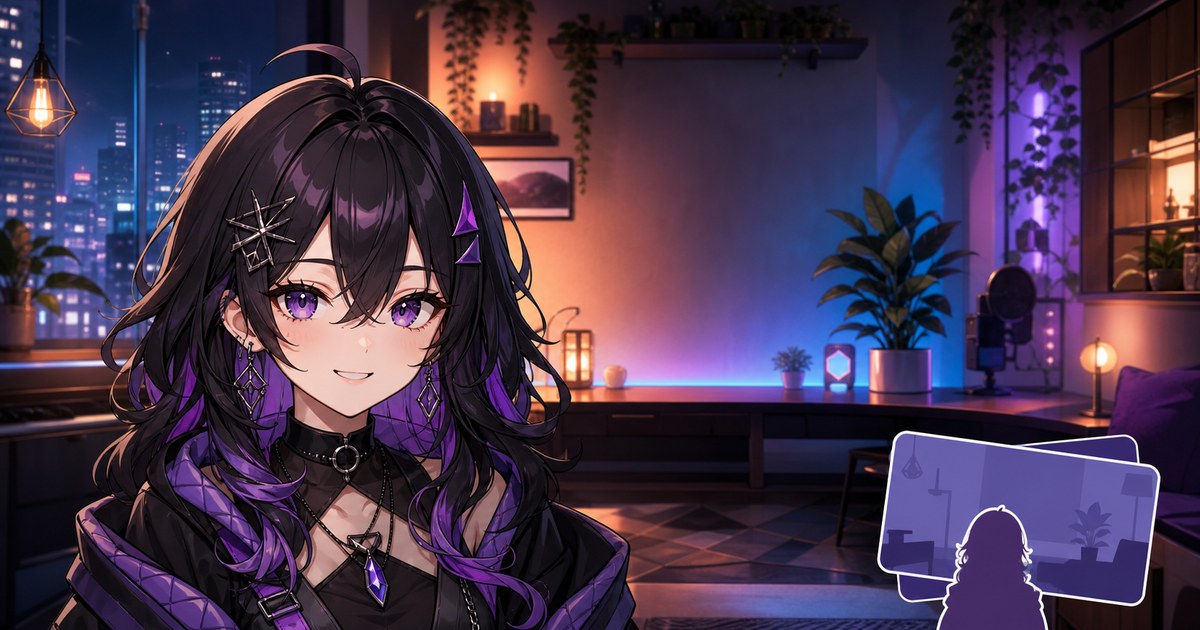
What is a VTuber or PNGTuber background?
A stream background is the environment placed behind the avatar inside a broadcast scene. It may look like a bedroom, control room, tavern, library, spaceship or abstract studio. Unlike a profile banner, it is part of the live video composition.
The background does not make the avatar reactive. Veadotube Mini, PNGTuber Plus or another avatar application handles the image states and microphone reaction. OBS combines that captured avatar with the background, gameplay, chat and alerts.
Background, overlay and profile banner are different
| Asset | Position | Purpose |
|---|---|---|
| Stream background | Behind the avatar | Provides the environment for chatting, commentary or intermission scenes. |
| Overlay | Above or around scene elements | Frames gameplay, chat, alerts and information areas. |
| Profile banner | On the channel profile | Represents the channel outside the live scene. |
| Offline screen | Platform-dependent offline presentation | Communicates that the channel is not currently live. |
For matching profile artwork, use the separate PNGTuber Twitch banner maker guide.
How to create a matching PNGTuber background
- Define the character identity. Describe stable hair, outfit, colors and accessories.
- Choose the pose and emotion. Keep this separate from the identity prompt so the design remains easier to control.
- Generate the four states. Review A Talking, B Quiet, C Blink + talk and D Blink.
- Reject visual drift. Fix mismatched accessories, hairstyle or clothing before creating another asset.
- Select Create background. The action appears after the character job completes.
- Download and test in OBS. Position the background below the captured avatar and inspect the scene at output size.
New creators can review how PNGTuber states work before generating the character.
Compose the room around the avatar
Reserve a quiet silhouette zone
Decide where the avatar will sit before evaluating the environment. Reduce shelf edges, bright lamps, plants and high-contrast props directly behind the hair and shoulders. A clear silhouette matters more than filling every empty corner.
Use asymmetric balance
The avatar does not have to sit in the center. A lower-left or lower-right position can leave room for chat, gameplay or topic graphics. Balance the opposite side with softer shapes rather than another dominant focal point.
Control visual depth
Foreground furniture should not cut across the avatar unexpectedly. Midground objects establish the room, while softer background lighting creates depth. If every object is equally sharp and bright, the scene becomes difficult to read.
Match lighting and color without losing contrast
Reusing two or three character colors makes the background feel intentional. A purple-haired avatar might sit in a room with restrained violet accent lighting, but placing the same saturated purple directly behind the hair can erase the silhouette.
- Use a lighter background behind dark hair or a darker zone behind pale hair.
- Keep the brightest practical light away from the face outline.
- Repeat accent colors in small props rather than covering the whole room.
- Preview the avatar in talking and blinking states; mouth and eye changes must remain visible.
- Check the scene at a small player size, not only full-screen.
Put the background into OBS
Add the downloaded image as an Image source, then place it below the avatar capture in the Sources list. OBS renders sources according to their scene order. Its official Sources Guide explains image sources, capture sources and source ordering.
- Create or open the target OBS scene.
- Add the background as an Image source.
- Fit or crop it to the chosen canvas without stretching the artwork.
- Add the transparent avatar or captured avatar application above it.
- Lock the background source after positioning it.
- Record a short local test before streaming.
Canvas and output settings vary by production. Match the source to the canvas you actually use rather than assuming one universal background dimension. If the ratios differ, crop deliberately instead of distorting the room.
For transparent capture and placement methods, follow the PNGTuber to OBS guide.
Background layouts for different stream scenes
Just Chatting
Give the avatar more visual weight and leave an uncluttered area for chat or discussion prompts. A room with a desk, chair and soft practical lighting communicates presence without requiring gameplay.
Gameplay
Gameplay should remain the main source. Use the room background only in side panels, waiting scenes or layouts where the game does not occupy the full canvas. Avoid shrinking gameplay solely to expose decorative furniture.
Starting soon or intermission
A wider view of the same environment can support a calmer waiting scene. Add exact countdown text and schedules later in OBS or a design tool rather than relying on generated lettering.
Common VTuber background mistakes
- Generating the room before approving the avatar: color and identity drift carry into the second asset.
- Putting a bright object behind the face: the silhouette loses priority.
- Treating empty space as failure: negative space is useful for chat, alerts and responsive layouts.
- Stretching to fit the canvas: characters and room geometry become distorted.
- Embedding important generated text: exact lettering should be added separately.
- Using the same layout for every scene: Just Chatting and gameplay have different visual priorities.
- Skipping a recording test: a still preview does not reveal compression, source order or avatar readability in motion.
VTuber and PNGTuber background FAQ
Can a PNGTuber use a VTuber background?
Yes. A static room background is not limited to one avatar technology. What matters is the composition, source order and contrast around the avatar.
Does FreePNGTuber create the background before the character?
No. Complete the four-state character first. The optional matching background action becomes available after the character result is ready.
What background size should I use?
Use artwork that fits the OBS canvas and output configuration chosen for the scene. Preserve the image ratio, then crop or reposition intentionally if the canvas differs.
Should the background include text?
Keep essential names, schedules and calls to action separate. Add exact typography later in OBS or a design application so it remains editable and readable.
Can I also make a matching Twitch banner?
Yes. The completed character exposes a separate banner add-on that creates matching 1920×600 profile artwork.
Build the character before the room
Generate and review the four reactive PNG states. After the result is complete, create the optional matching background and assemble the scene in OBS.