
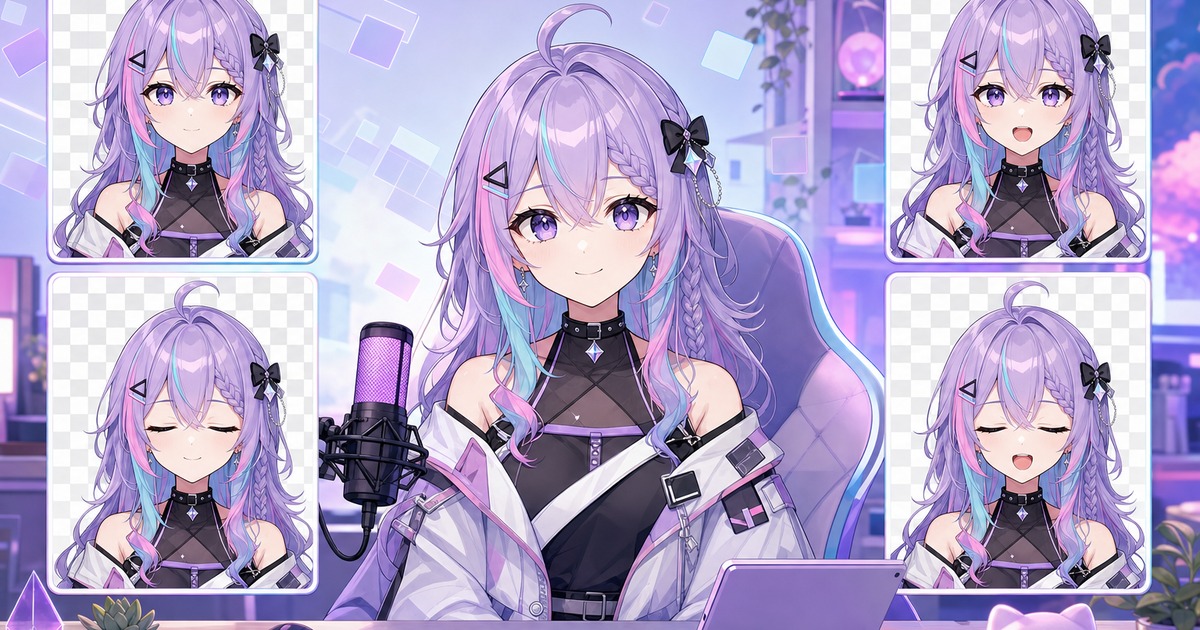
A PNGTuber is one of the quickest ways to put a character on stream without building a full 2D rig. You use a small set of transparent character images, and your software switches between them when you speak or blink. The result feels lively on camera, but the setup stays manageable.
If you already have a character idea, you can create the four core states with the Free PNGTuber Maker. It also packages them into a Veadotube Mini project, so you do not have to wire every image together by hand.
What is a PNGTuber?
A PNGTuber is a reactive avatar built from still images. Unlike a Live2D model, it does not need a mesh, physics setup or face tracking. The avatar changes state in response to your microphone and, depending on the app, an automatic blink timer.
Most PNGTubers are used for Twitch and YouTube streams, Discord calls, podcasts, tutorials and videos where the creator wants a visible character without appearing on camera. The format is also popular with first-time streamers because it is easier to test a character concept before paying for a complex model.
The four images a PNGTuber needs
A basic model can work with two images, but four states look much better:
- Idle: eyes open, mouth closed.
- Speaking: eyes open, mouth open.
- Blinking: eyes closed, mouth closed.
- Speaking while blinking: eyes closed, mouth open.
The character design, pose, crop and clothing should stay consistent across all four. Only the eyes and mouth need to change. Small shifts in the face or silhouette can make the avatar appear to jump when the software swaps images.
What files are in a PNGTuber model?
The phrase “PNGTuber model” usually means a bundle of character images plus any project or configuration file used to switch between them. It is not the same kind of model as a rigged Live2D avatar. There is no mesh, bone structure or face-tracking data inside a standard PNGTuber image set.
A practical four-state package contains transparent PNG files for idle, speaking, blinking and speaking while blinking. FreePNGTuber labels these states A, B, C and D and can also package them into a .veadomini project for Veadotube Mini. If you use another reactive-avatar app, you can import the individual PNG files instead of the project file.
Matching stream backgrounds and banners are separate channel assets rather than part of the reactive model itself. Keep the original PNG states together even after importing the project, especially if you may want to use the same character in OBS, Discord Reactive Images or different PNGTuber software later.
How to make a PNGTuber for free
- Describe your character. Include the hairstyle, outfit, colors and distinctive accessories that matter most.
- Choose a visual style. A clear, readable design usually works better on stream than tiny costume details.
- Add a pose and emotion. The optional second prompt lets you ask for a friendly wave, a confident stance, a shy posture or another specific attitude.
- Generate the character pack. The maker builds the four speaking and blinking states while keeping the same character design.
- Download the Veadotube Mini file. The finished
.veadominiproject contains the state images in one portable pack.
You can try three creations before an account is required. That gives you room to test a few character directions before deciding which one to keep.
Create your PNGTuber with the free online maker →
Writing a prompt that produces a readable avatar
If you need a starting concept, browse 25 PNGTuber ideas with ready-to-use character prompts.
Start with the features a viewer should notice at thumbnail size. A useful prompt might read:
Original moon-themed fox streamer, shoulder-length lavender hair, dark hoodie with silver star details, large expressive eyes, half-body framing, clean anime style.
Then use the Pose & emotion field for the performance direction:
Relaxed and cheerful, one hand raised in a friendly wave, confident posture.
Keeping those instructions separate helps you revise the pose without rewriting the whole character. Avoid listing twenty accessories. They can make the silhouette noisy and are harder to reproduce across expression states.
How to use the pack in Veadotube Mini
Download and install Veadotube Mini from its official source, then open the .veadomini file from your completed pack. Select your microphone inside the app and adjust the speaking threshold until the avatar changes state when you talk but stays idle when the room is quiet.
Test normal speech, a whisper and a louder sentence. Microphone gain varies a lot between setups, so the default threshold may not be right for yours. Once the response feels natural, add the Veadotube window to OBS or your preferred streaming software using the capture method recommended by the app.
For microphone tuning and troubleshooting, follow the complete Veadotube Mini PNGTuber setup guide.
PNG avatar or Live2D model?
For a complete comparison of movement, hardware and preparation, read PNGTuber vs VTuber: Which Avatar Setup Should You Choose?
A PNGTuber is the practical choice when you want to start quickly, keep the setup light or test a new character. A Live2D model can support head turns, body motion and more detailed face tracking, but it takes longer to draw and rig.
You do not have to treat the choice as permanent. Many creators begin with a PNG avatar, learn what works on stream, and commission a rigged model later. Others keep the PNG format because its graphic, snappy changes are part of the channel’s style.
Make your first character
The easiest first model is a clear half-body character with a simple pose and four dependable face states. Once that works, you can experiment with stronger emotions, alternate outfits and stream backgrounds.
Open the Free PNGTuber Maker and describe the character you want to bring on stream.