
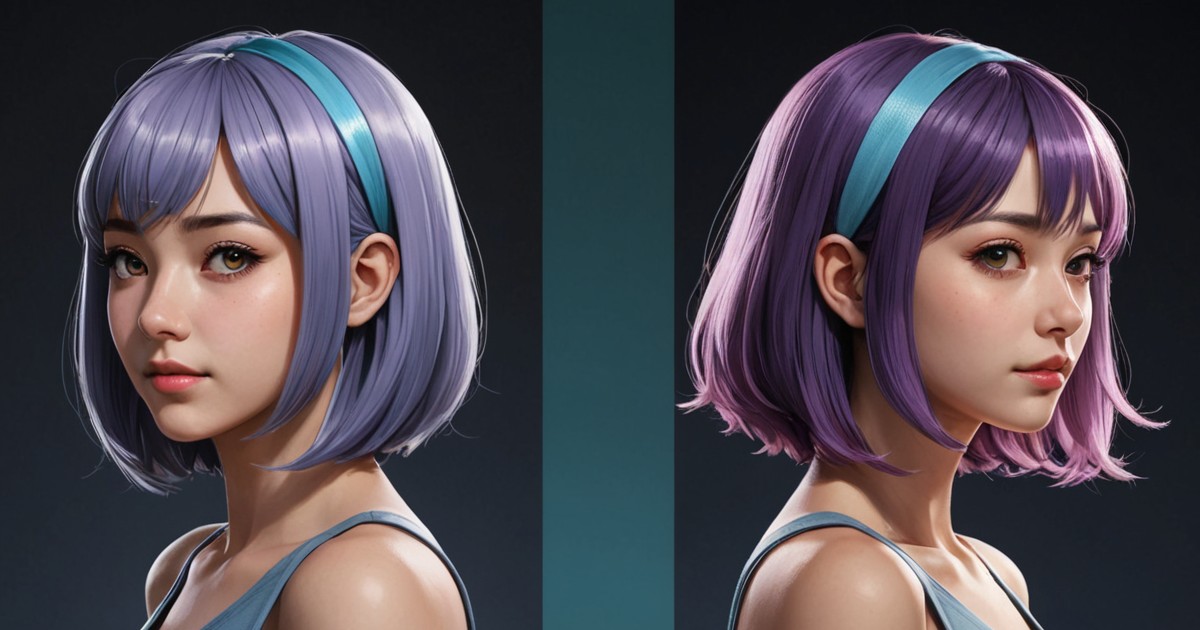
A transparent PNG can look perfect in an art app and still grow a pale, dark, or colored outline when you place it over a stream background. The file is usually not “losing transparency.” More often, the partially transparent pixels around the character contain color that becomes visible during scaling or compositing.
This is especially noticeable around hair, fur, antlers, and soft accessories. Those edges contain many pixels that are neither fully opaque nor fully transparent. Put them over a different background, resize the source, and a hidden matte can show up as a halo.
What a transparent PNG edge actually contains
PNG supports an alpha channel, which stores transparency alongside color. An edge pixel can therefore be violet hair at 40% opacity rather than a solid violet pixel or an empty one. The browser and streaming software blend that pixel with whatever sits behind it.
The MDN image format guide describes PNG as a lossless format with alpha transparency support. That makes it a sensible format for reactive avatar states, but the format cannot repair colors that were already baked into soft edge pixels during export.
Two images may look equally transparent on a checkerboard and behave differently on a dark scene. If one was prepared against white, its faintest edge pixels may still lean white. On a pale canvas, you will barely see them. On navy or black, they become a rim.
Run the four-background test
Do not judge the edge on a checkerboard alone. Place the same PNG over four temporary backgrounds:
- pure white;
- near-black;
- a saturated color that is absent from the character;
- the actual background used in your OBS scene.
Zoom in to inspect the edge, then zoom back out to the avatar’s real on-screen size. A one-pixel fringe can look severe at 800% and disappear in the finished layout. The reverse also happens: a soft border that seems harmless in the editor can shimmer after the source is reduced.
Use the test to identify the pattern. A white fringe usually points to a light matte or light contaminated edge colors. A dark fringe suggests the opposite. A jagged edge may be an export-resolution or scaling problem rather than a transparency problem.
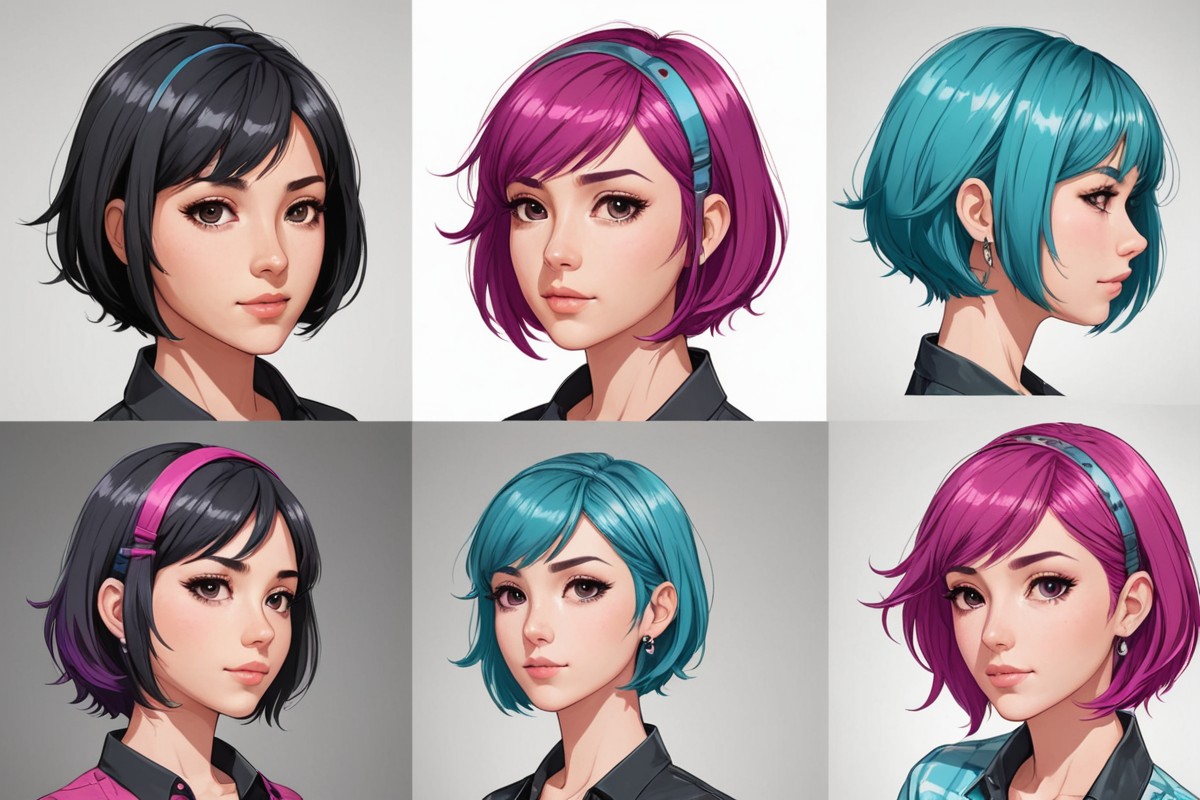
Fix the source before adding filters
The cleanest repair happens in the layered source file. Reopen the artwork in the app where it was created, hide the background, and inspect the outer pixels on both light and dark layers. Remove leftover background color without cutting into the actual silhouette.
For a hard-edged drawing, a careful selection and mask cleanup may be enough. Hair, fur, and semi-transparent effects need more restraint. Aggressive erasing can replace a soft halo with a crunchy cutout. Work on a duplicate layer and compare at normal viewing size after each pass.
If the art was flattened onto white before the background was removed, some original edge color may already be gone. A decontaminate-colors or defringe command can help when your editor provides one, but it is not magic. Repainting a few important strands by hand often looks better than applying a strong global setting.
Export each PNGTuber state the same way
A reactive avatar switches between separate files. One state exported with different color handling, canvas bounds, or antialiasing can flash at the edge even if every pose looks fine by itself.
Use one master canvas for idle, talking, blinking, and talking-plus-blinking states. Keep the character in the same position and use the same export preset each time. The four-state PNGTuber guide explains the state set and why consistent alignment matters.
After export, compare all states over the same dark test layer. Switch between them quickly. Watch the silhouette, not only the mouth and eyes. A changing fringe near the hair can read as flicker once voice activation starts.
Check scaling in OBS or your capture app
A clean source can still look rough after resizing. Streaming software must sample neighboring pixels when it makes an image smaller. Very fine transparent details may pick up a light or dark tint depending on the source edge and the scaling filter.
Start with the source near its intended display size instead of importing a tiny image and enlarging it dramatically. Resize from a corner so you preserve the proportions. Record a short local clip and review it at the final output resolution; the large OBS preview is not the same test.
If the PNG itself is used as an OBS Image source, compare the available scale filtering options in the source’s context menu. If you capture a reactive-avatar window, filtering and transparency also depend on the capture route. The PNGTuber and OBS setup guide covers transparent capture methods and color-key fallbacks by operating system.
Do not reach for a chroma or color key when the file already has transparency. A key removes pixels based on color and can damage eyes, clothing, and fine outlines. It is useful for a genuinely opaque green or solid-color window, not as the first repair for a PNG alpha fringe.
Know when the background is the real problem
Sometimes the edge is technically clean but hard to read. Dark hair against a dark room can disappear, while a bright outline in the artwork can feel like a halo. That is a composition problem.
Try a subtle contrasting light behind the character, move the avatar to a calmer part of the scene, or add a deliberate outline in the source art. A designed outline has consistent color and thickness. An export halo clings unevenly to soft edges and often changes between states.
A quick repair order
- Test the PNG on white, black, a saturated color, and the real scene.
- Compare every reactive state on the same backgrounds.
- Clean the layered source rather than repeatedly erasing the exported PNG.
- Export every state from one canvas with one preset.
- Check the final size and scaling in a short recording.
- Change the scene contrast only if the edge is clean but the silhouette still disappears.
If you need a consistent four-state set to start from, use the free PNGTuber maker, download the files, and run this background test before your first stream.
FAQ about transparent PNG halos
Why does my PNG have a white outline only on dark backgrounds?
The faint edge pixels probably contain color from a light matte. Their low opacity hides that color on white, but compositing reveals it on a dark scene. Inspect and clean the layered source on both light and dark test layers.
Should I remove every semi-transparent pixel?
No. Soft hair and curved lines often need partial transparency for smooth antialiasing. Removing all of it can make the silhouette jagged. Remove contaminated color while keeping useful edge softness.
Will converting the file to another format fix the edge?
Usually not. Converting a flawed edge preserves the flaw and may introduce new limitations. Return to the source artwork, clean it, and export a fresh PNG with transparency.
Why does the halo appear only after I resize the avatar?
Resizing blends neighboring pixels. Faint matte colors can become more visible, especially on fine hair or at a large scale change. Test another filtering option and export closer to the size you intend to display.