
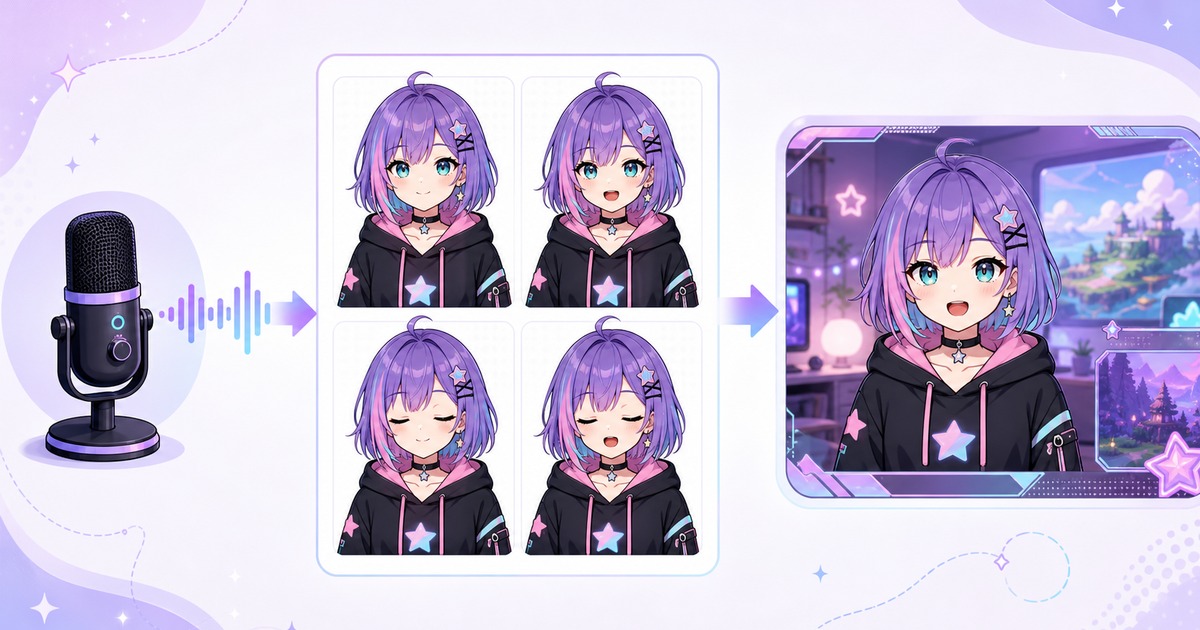
Veadotube Mini turns a set of character images into a reactive avatar. It listens to your microphone, switches to a speaking image when your voice crosses a chosen level, and can add blinking without face tracking or a webcam.
This guide covers the practical setup: getting a character pack, opening it in Veadotube Mini, choosing the right microphone, adjusting voice detection, and capturing the result for a stream.
What Veadotube Mini does
Veadotube Mini is PNGTuber software made for lightweight reactive avatars. A typical character uses four transparent images:
- eyes open and mouth closed for the idle state;
- eyes open and mouth open for speaking;
- eyes closed and mouth closed for blinking;
- eyes closed and mouth open for speaking during a blink.
The app changes between these states based on microphone activity and blink timing. The images do not need bones, meshes or facial tracking data.
If the format is new to you, read What Is a PNGTuber? How to Make One for Free before choosing your first character design.
What you need before starting
- A Windows, macOS or Linux computer supported by the current Veadotube Mini release.
- A working microphone that appears as an input device on your computer.
- Four matching PNGTuber states, preferably with transparent backgrounds.
- Streaming or recording software if you plan to use the avatar in a broadcast.
Is Veadotube Mini available on mobile?
No official Veadotube Mini app is currently available for Android, iOS or iPadOS. The official installation guide describes Veadotube as desktop or laptop software for Windows, Linux and macOS. ChromeOS is not directly supported unless you use its Linux development environment or replace the operating system.
Avoid unofficial downloads presented as mobile ports. If you are deciding between desktop programs, read the Veadotube Mini vs PNGTuber Plus comparison. Veadotube is the cross-platform option, while the current PNGTuber Plus Steam release is Windows-only and focuses on layered sprite movement.
Where to download Veadotube Mini safely
Use the official Veadotube Mini page on itch.io. The official installation documentation directs Mini users to that page, then to the Download Now section. A donation prompt may appear; supporting the creator is optional, and the page provides a link to continue to the downloads without donating.
Choose the package for your desktop operating system and read the current requirements before downloading. The official documentation covers Windows, Linux and macOS separately because their installation steps differ. Release requirements can change, so use the current documentation rather than copying an old platform checklist from a third-party mirror.
After downloading, extract the archive before launching the program and keep the executable with the files supplied beside it. Do not download an APK, mobile port or repack claiming to be Veadotube Mini: the official documentation states that Android, iOS and iPadOS are not supported.
Create a ready-made Veadotube pack
If you do not have the four character states yet, use the Free PNGTuber Maker. Describe the character, choose a style and framing, then add an optional pose and emotion. The completed generation includes the four transparent states and a .veadomini project.
You can try three character creations before an account is required. This is useful for comparing different designs before setting up the final avatar.
Create a Veadotube-ready PNGTuber →
Open the .veadomini project
After downloading the character pack, keep the .veadomini file somewhere you can find again, such as a dedicated streaming assets folder. Open it with Veadotube Mini. Depending on your operating system and app version, you may open the project from inside the program or by opening the file directly.
The avatar should display the character states already stored in the project. If you build a model manually instead, assign the corresponding idle, speaking and blinking images inside Veadotube Mini. Interface labels may differ between releases, but the four-state logic remains the same.
The current Veadotube documentation describes saved avatars as .veado files. FreePNGTuber packs include a .veadomini project plus the four separate PNG states. Keep those PNG images with the download: if your installed Veadotube release does not open the project directly, you can assign the four states manually and save a new project in the format supported by that release.
Select the correct microphone
Choose the microphone you actually use for streaming. Built-in laptop microphones, USB microphones, headset microphones and virtual audio devices may all appear in the input list, so it is easy to select the wrong one.
Speak at your normal volume and watch the input level. If nothing moves, check the operating system’s microphone permissions and confirm that another app has not taken exclusive control of the device.
Adjust voice detection
The speaking threshold decides when the avatar opens its mouth. Set it above the normal room noise but below your regular speaking level.
Use a short test:
- Stay quiet for several seconds. The avatar should remain idle.
- Speak in your normal voice. The speaking state should activate without delay.
- Try a quieter sentence. Raise microphone gain or lower the threshold if it never triggers.
- Type on your keyboard or click the mouse. Raise the threshold if those noises constantly open the mouth.
There is no universal threshold value. Microphone gain, distance and room noise differ between setups. A few minutes of testing usually gives a more natural result than copying somebody else’s number.
Check blinking and state consistency
Let the model run for a minute and confirm that the eyes close occasionally in both quiet and speaking states. Watch the hair, shoulders and clothing when the images switch. They should stay in the same position.
If the whole character jumps, the source images probably use different canvas sizes, crops or poses. Rebuild the states from one consistent character base rather than trying to correct every offset inside the streaming scene.
Add the avatar to your streaming software
Open Veadotube Mini before your streaming software, then add its output using a capture method supported by your setup. Window capture is a common option. Background removal, transparency and chroma-key choices can vary by operating system, graphics settings and app version.
For platform-specific instructions, use How to Add a PNGTuber to OBS. It compares Spout2 and Game Capture on Windows, PipeWire on Linux, Syphon on macOS, plus Window Capture and colour-key fallbacks.
Place the avatar in a corner of the scene, then record a short local test. Check the scale at the actual stream resolution. Fine costume details that look good in the original image may disappear when the avatar is small.
Common Veadotube Mini problems
Veadotube Mini will not open
Extract the downloaded archive before launching Veadotube Mini and keep the executable with the supplied files beside it. If it still does not open, use the official installation guide for current Windows dependencies, Linux permissions, or macOS security steps instead of downloading an unofficial repack.
Veadotube Mini is lagging or freezing
Hide the interface when possible to reduce CPU use. If Veadotube Mini runs poorly while a game is running, test its frame-rate options (VSync and Uncapped) and check relevant system/GPU settings, including the GPU driver if needed. The official troubleshooting guide says system or GPU settings can also be involved.
Veadotube Mini is not picking up the microphone
Confirm the selected input device, microphone permission and input meter first. Then lower the speaking threshold gradually.
The mouth opens when you are silent
Raise the threshold, reduce microphone gain, move the microphone closer to your mouth, or reduce keyboard and fan noise.
The character shifts between states
Use images with identical dimensions, framing and silhouette placement. A coherent generated pack avoids most alignment work.
The avatar is blurry on stream
Start with sufficiently large PNG files and avoid scaling a small image far beyond its original dimensions. Test the capture at the resolution you plan to broadcast.
Using remote guests instead
Veadotube Mini is a good fit for an avatar controlled by your local microphone. If remote guests need separate avatars driven by a Discord voice call, follow the Discord Reactive Images and OBS guide.
Build the character before tuning the software
Veadotube Mini setup is easier when the four source images already match. Create the character states first, check that only the eyes and mouth change, then tune the microphone response.
Open the Free PNGTuber Maker to generate a four-state character and download the Veadotube Mini project.